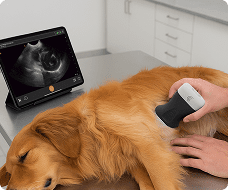
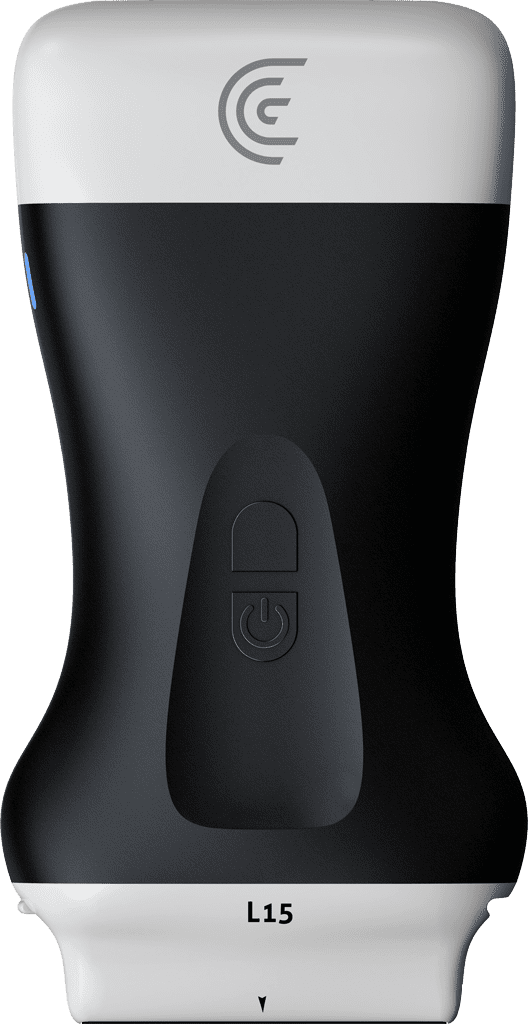
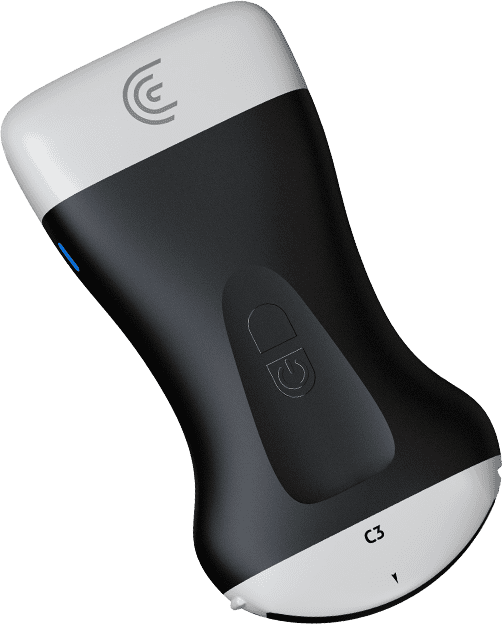
hi my name is shelly today i'm going to show you how you can activate color doppler on your scanner to either detect or analyze blood flow so in this situation i'm going to be scanning the carotid artery i'm going to locate the artery and then i'm going to go down to the mode icon and turn on color doppler and here we see a nice demonstration of carotid artery flow with a smaller venous structure underneath now if i want more color flow or less color flow i can increase or decrease the gain by just holding down my finger and swiping to the right or the left now i have too much color so i'm going to go to the left until we have just the right right amount of color filling the vessel i can increase the size of the color box by tapping on the lower right and dragging to a desired size and i can also steer the color box in the other direction if i feel that the blood flow is at a different angle so i'm just going to drag to the bottom left steer the color box in the opposite direction and i'm going to change the direction of blood flow by tapping on the spectrum and there we have our color doppler you