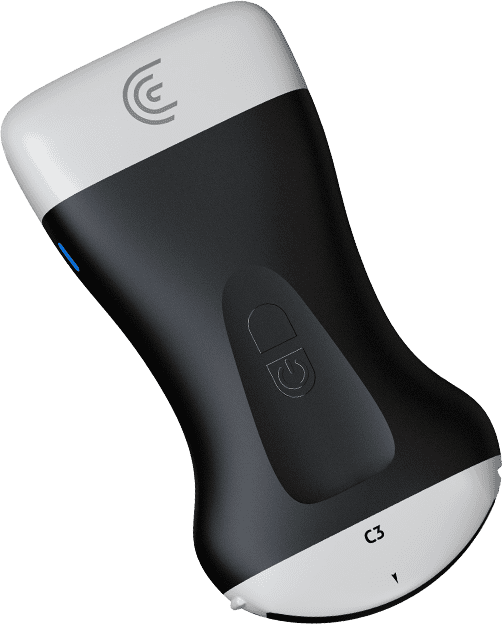



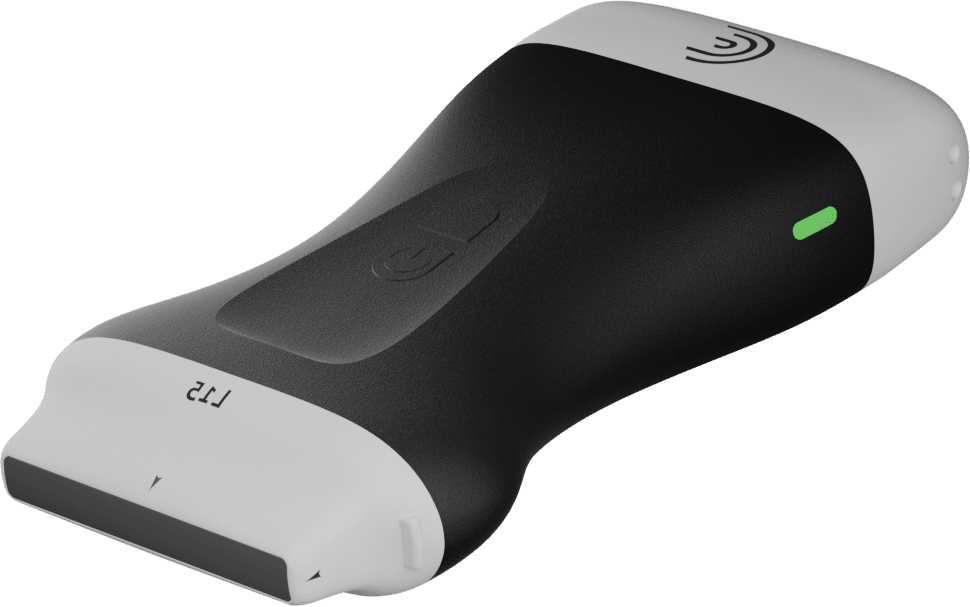

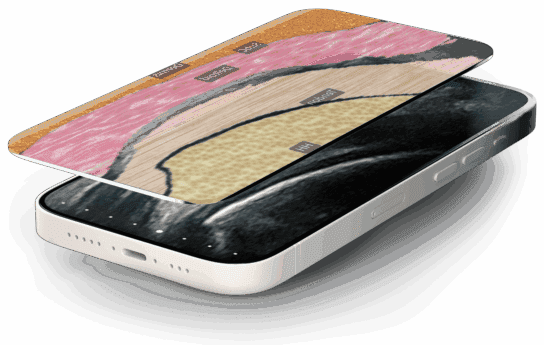
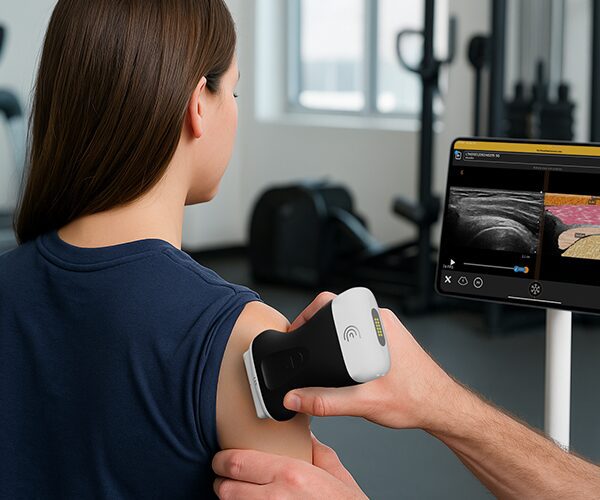
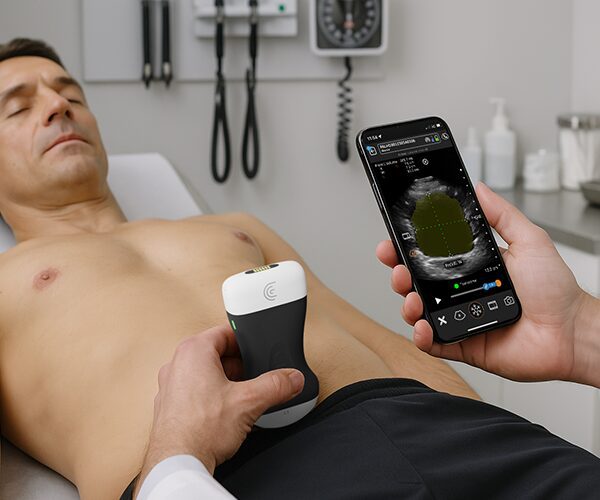


Congratulations on the purchase of your new Clarius Scanner! Now you’ll need to download the app onto your device so you can start scanning. Here’s how to get started, along with some basic scanning tips.
hi my name is shelly and today i'm going to show you how to get started with your clarius scanner first of all you're going to go to the app store on your device and locate the clarius ultrasound app you're going to download the app and now we'll open the app so now if you don't already have an account you can create a new account or log in with your existing credentials and now i'm going to enable my scanner and this is asking me to use location services so i do want to allow this while i'm using the app because we want to be able to track where our scanner was last used and it's asking me if i want to allow bluetooth location and we're going to say yes so now this is detecting a new scanner so this is where i'm going to claim our scanner for our account and confirm that i'm going to hit update so now i can see my scanner at the top of the list here i'm going to connect my scanner and if the blue light is flashing that means that the device is pairing with my scanner i'm going to select the abdomen preset and we're just going to wait a few seconds until we can start scanning we can join the network and now we're ready to start scanning so in the abdominal setting getting a nice image of the liver and the kidney if i want to increase my gain i just slide my finger to the right if i want to decrease it slide it to the left to adjust depth i swipe up for more depth and down for less depth if i want to freeze my image i can take an image that's still picture with the camera and then unfreeze if i want to do a cine clip i just click on the film strip to perform measurements i just click on the measurement icon select a distance measurement and tap on either end of the structure that i want to measure and then take an image now in the event that you want to put annotations on your image you click on the tools annotations and add predetermined annotations you can move them to where you want you can place a pin that points to the structure that you're looking at and then you can take another image to delete your annotation simply press on the trash can now once you've completed your exam you can go to the report page review your images delete the ones that you don't want and when you're happy with your results you can hit end exam where i can choose to upload my images to the clarius cloud save them on the local drive where it's asking me if i want to be able to access photos on my device which i do and then end exam at this point your images will be uploaded to the cloud when you have internet connection