



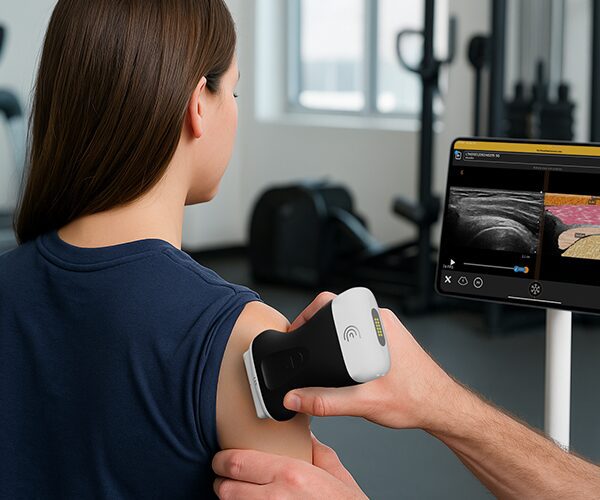
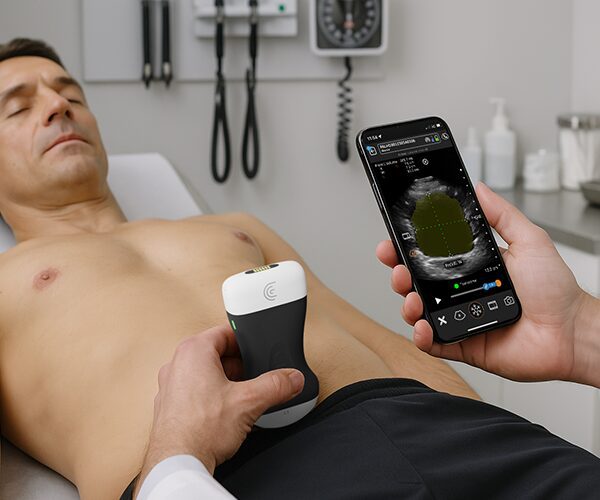


This video demonstrates how to customize annotations for exams and export PDF reports to upload to an EMR.
hi my name is esther i'm going to be showing you how to customize your annotations when you're in the clarious cloud right now i'm in the clarius cloud home page and to customize the annotations i select settings on the right hand of the screen once i select the settings i scroll down and i select systems on the left hand side under systems your you will find workflows you're going to click on the workflows and this is where you can customize the annotations to reflect what images you take when you scan certain areas of the body as i scroll down i'm going to select abdomen i can change the title if i'd prefer to call it something such as e-fast if i'm in the emergency room and then i can scroll down and customize these annotations or i can add my own i can add by clicking add put in the title efast and then i would type in the labels that i want to be available so i will start with typing in right upper quadrant and then i use a comma to separate them left upper quadrant and so forth and that is how you can customize your annotations when you're in the clarious cloud now i'm going to show you how to create a pdf to upload to the patient's emr this is very simple to do you're going to select exams find the patient that you would like to create your pdf i'm going to select that now after i've selected the images i have the opportunity now to add annotations by clicking annotation and i can type for in this example it's a kidney i can add that annotation to the image and then it will be part of the patient file i can move that anywhere on the screen that i would like and i can also use the thumbtack to point out the area of interest i can scroll further through the images and once i'm set of satisfied that i have everything that i need for this patient report i come up here to report at this point i have the ability to add text fields i can enter the patient id if i haven't done that yet as i scroll down this is where you could add your notes as well as your findings so that you have a complete report at the bottom you'll notice that there are four images that will also be saved to that pdf report what you would do now is save your pdf to your desktop i i typically would name it the the name of the patient that was scanned i press save i type in the patient's name and save it to my desktop once it's on the desktop i'm able to open the emr on my workstation and upload the clarius report into my emr you