





Customize your scanner in Clarius App settings to streamline workflow and extend the battery life of your scanner.
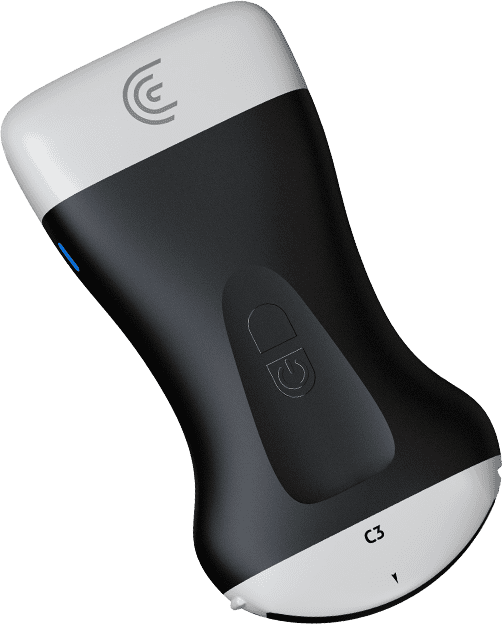
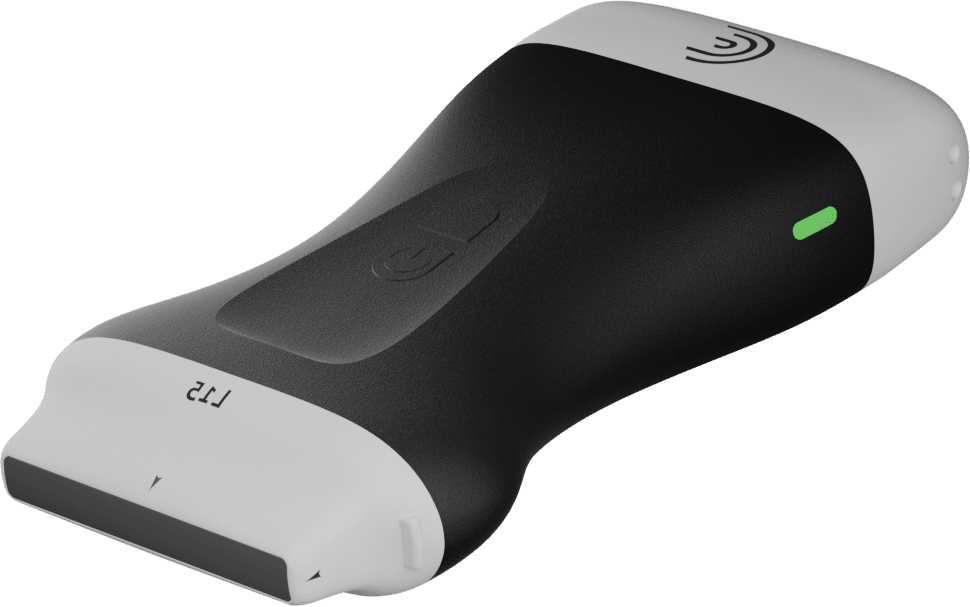
hi my name is shelly and today i'm going to tell you all about the clarius app settings now you have many options available to you in the clarious app things that you can customize to suit your workflow and scanning options as well as extend the battery life of your scanners now to access the app settings we're going to hit the back arrow from the scanning page go into the menu button and here you'll see settings here you'll see many options some of which are turned on by default a couple of options that i like to have turned on is the auto scan pos cine and the auto scan upload with the upload option turned on the app is disconnected from the scanner so that the exam can be immediately uploaded to the cloud or to dicom so next we'll scroll down to image export settings i'm going to tap on that under the overlays category there are options that allow you to customize what you want to see on the images that you export for the most part i don't change these under the header fields you'll see options that you can include on the exported images and i like to include at the very least the patient name and the exam date but this will depend on your personal preferences and what your institution demands next we'll press the back arrow and check out what's on the on-screen display settings these are options that you can choose to see on your screen when you're performing the exam imaging depth is very important to have turned on especially if you're doing ultrasound guided procedures and unless you have an interest in seeing other selections you can leave them just turned off now the information bar is where you can decide what you want to see on the banner on your scanning page and again i like to see the patient name as well as the lmp gestational age for those obstetrical studies that i'm performing so i'm going to hit the back arrow one more time and we'll scroll down to the scanner section most of these options are here to help extend your battery life now for those of you with removable batteries i like to have the auto boot turned off otherwise my scanner boots up as soon as i insert the battery and i may not be ready to start scanning yet i also like to have the sound button turned on i like an audible sound or a notice when i turn my scanner on or off the next settings in this category can be used to extend the battery life you can increase or decrease the time in contact detection auto freeze and keep awake depending on your scanning styles and these are all done with drop down menus with multiple options next are the button settings and these are fantastic as they allow you to freeze and store your images without touching your ios or android device these functions can all be done using the buttons on the scanner and this is where you decide what functions you'd like these buttons to perform the button closest to the clarius logo is the button up so here i'm going to select user defined and i'm going to tell the system that with a single click of the button up i want to capture an image if i do a double click i'm going to capture a cine clip now you also have the option of triple click or quad click and you can pick your selection depending on what you want so the same is done for the button down again we would select user defined and then it will give us a list of options that we would like to perform with the button down which is the one closest to the skin surface now by programming the button up hold to shut down now i can use either one of the buttons press them for three seconds and either one of them will shut down my scanner so we'll arrow back and scroll down a bit further and this is the connectivity settings because clarius uses direct wi-fi you will not have to have this setting turned on to perform an ultrasound exam so we'll scroll down a little bit further and the last thing i like to check is the screen calibration now you want to ensure that the orange indicator is set at 12 and this is going to give you the optimal contrast resolution on your device's screen when you're scanning so these are just a few of the settings that you can use to customize your scanner if you want more information go to support.clarius.com