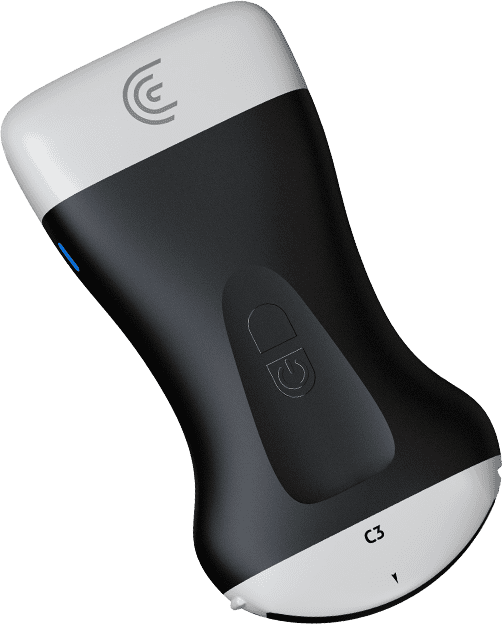
hi my name is shelly and i'm going to show you how you can customize presets with your clarius scanner clarius has multiple scanners for multiple applications but sometimes you like a little bit different look to your image so i'm going to show you how you can customize each preset for future use so that there's less fussing around when you actually begin to do your scan so in order to do that i've picked the preset the application that i like in this case which is abdomen and i'm going to make the changes that i want to make that i want to see happen every time i launch this application so i'm going to decrease my depth and i like a little bit of a brighter image so i'm going to increase the overall gain and that's kind of more my style so now that i'm happy with that and i know that that's where i want the application to launch to i'm going to go back to the application page there's a little arrow here i'm going to press that and the system is going to tell me that those settings have been saved into that application so now when i go back to my abdomen preset that's the look that i get