



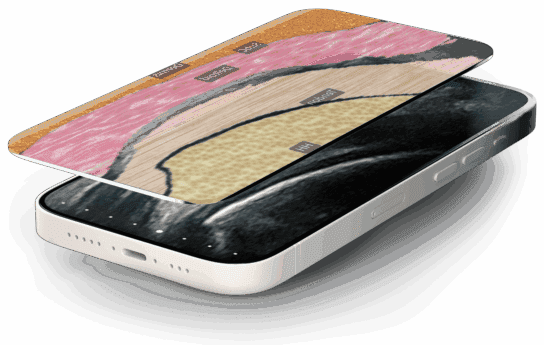


Before ending an exam you can review and delete images. Go to the patient demographic page, scroll to the bottom and swipe to the left to review stored images. For unwanted images tap the trashcan, bottom right of the image.
hi my name's esther i'm going to be showing you how to review and delete images before you send them to the clarius cloud to do that you simply press on the file folder up in the top left hand corner and right now i have five images stored i go back with that arrow i come to the demographic page i scroll to the bottom of the page and i'll be able to review the images that i've taken i swipe to the left and i can see each one of the images if there is an image that i decide that i do not want to upload to the cloud i simply press the trash can icon in the lower left hand corner and that image is deleted once you've stored your images you can go back and take a measurement to do that you simply tap on the image go to your measurement tools and select distance and measure the length of the uterus take a picture and now that will be a part of the patient's file i go back and i scroll down now that i'm finished i select end exam and i can save to the clarisse cloud as well as save to my local media which is my camera reel on my ipad or my android device i'm going to select that now and end the exam