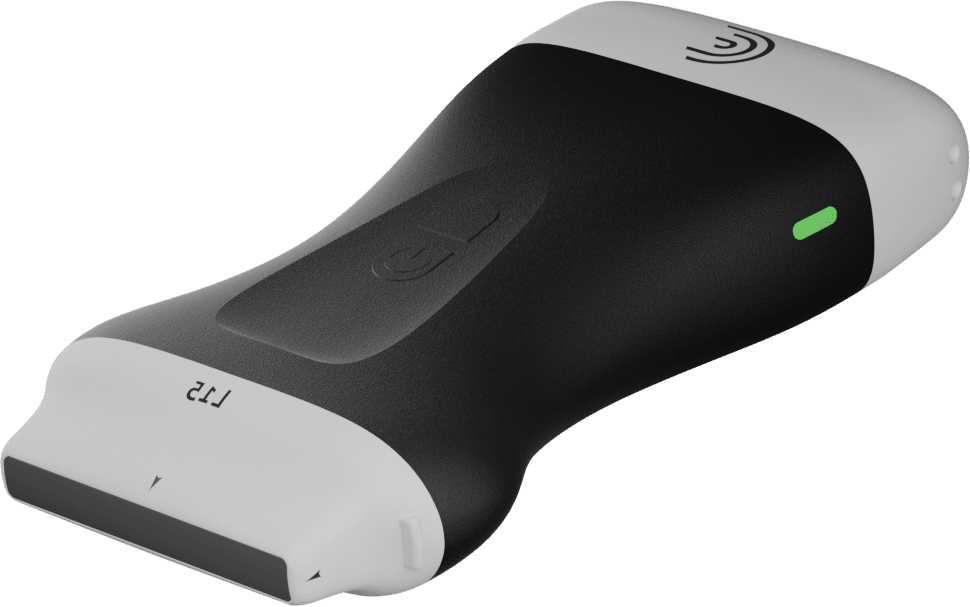
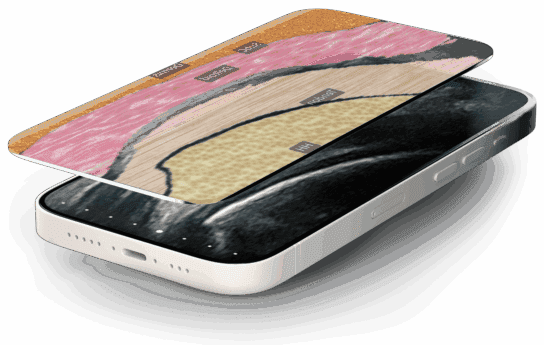
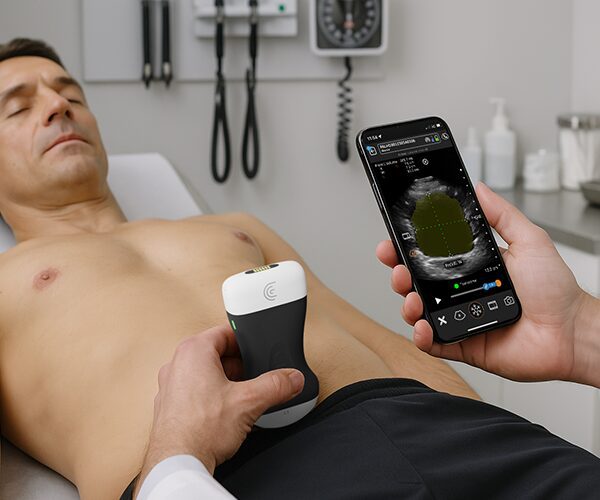
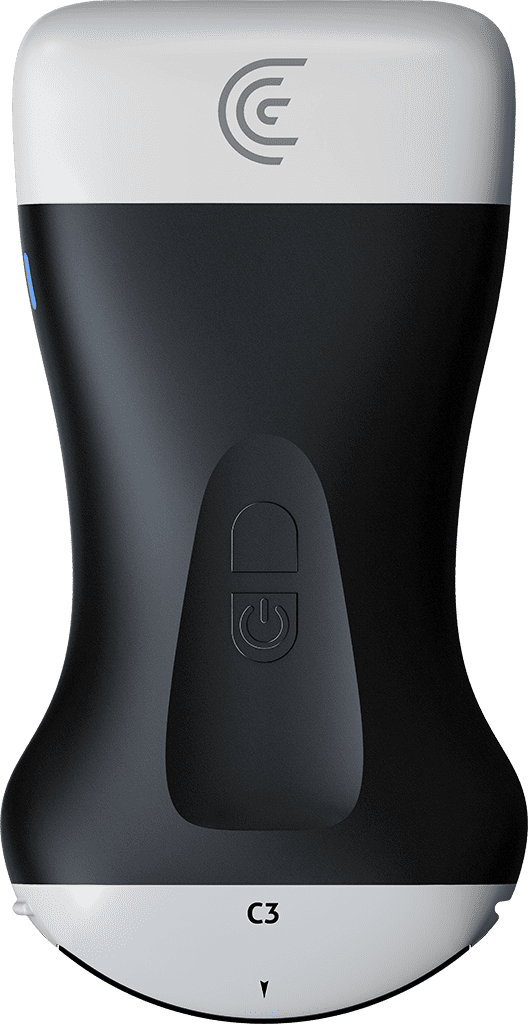
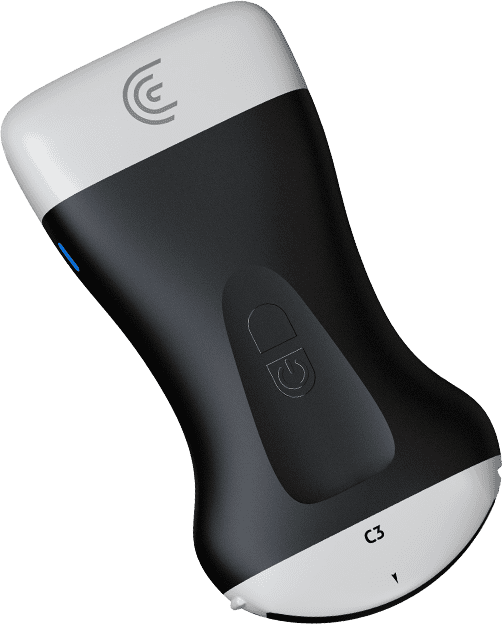
Hi, I'm Jana and I'd like to tell you about Prostate AI. This feature allows an ultrasound user to quickly and easily identify the prostate, measure its volume, and corresponding PSA density. I'll demonstrate that now. We'll start at the patient demographics page, and this is where we would enter the patient's name, birth date, and any other relevant medical information. When we scroll down, we can see there's an area here to enter the patient's PSA levels. I'll enter three for the purpose of today's exam. Under the indications header, we can see some areas where we can fill in for indications for the prostate exam. We'll come back to this page at the end of our scan. I'll tap the scan button. And I've selected the C3 scanner for today's scan, but just take note that the prostate AI is also available with the EC7 endocavity scanner. Under the applications tab, I'm going to select the prostate preset and we'll begin our scan. I'm going to start in a transverse orientation over top of the patient's pelvis and I'll angle downward towards the patient's pubic bone. To activate the AI, I'll select the AI icon on the left hand side of the screen and select prostate volume. The transverse label has been applied to the screen for me and the prostate has been highlighted with a masking overlay. I can adjust the opacity of the masking overlay by selecting the AI teardrop icon and selecting AI opacity. And now when I drag my finger to on the screen to the right, the opacity of the masking is increased. And to the left, the opacity is decreased. When I'm happy with the look of my image, I'll select the freeze button and the calipers that have been placed for me. I can adjust the caliper placement by dragging my finger over the crosshairs and placing them into a position that I like. I'll tap the camera icon on the bottom right hand side of the screen to save my measurements and image. We'll tap the unfreeze button and I'll rotate my scanner 90° into the sagittal orientation. The sagittal label has been placed for me. And when I select the freeze button, the caliper is automatically placed. And on the top left hand side of the screen here, we can see all three of those measurements along with the prostate volume has been calculated on the screen. And now when I save this image, those measurements are transferred to the Clarius cloud. We'll tap the back arrow and head back to the patient demographics page. And here we can review our images, our measurements, and any of the calculations. We can also see here that the PSA density has been calculated for us. We'll scroll down to the impressions heading. And here we enter any findings from our scan. We can tap the end exam button. And we've completed our prostate study.