00:00:00.280 — 00:00:51.000
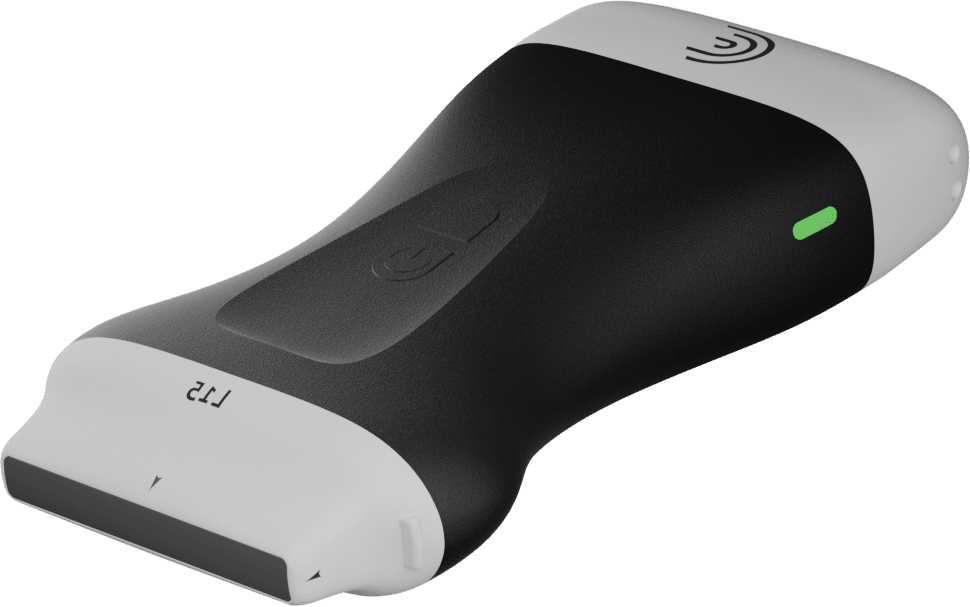
Hi, my name is Shelly and today I'm going to show you how you can use the voice control feature with your Clarius scanner. This is available with all of the Clarius scanners and in all of the presets. Using voice controls will allow you to make key imaging adjustments as you scan. Adjusting the depth, the gain, even turning on color Doppler and several others.
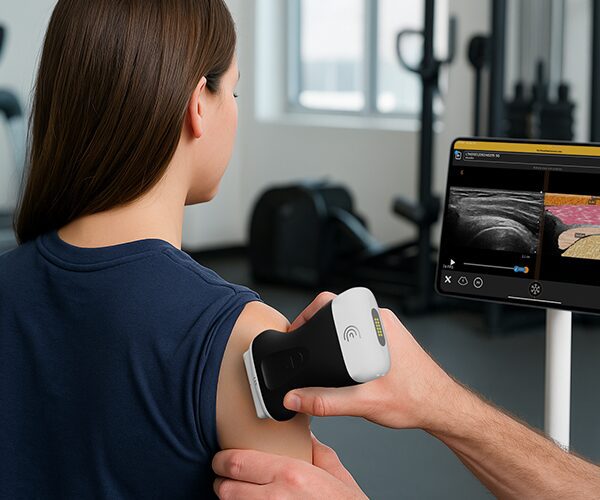
So let me show you how this works. I'm just using my L7 scanner in the MSK preset, but as I mentioned, you can use any preset and any scanner before I start my study or any time during my study, I'm just going to tap the tools menu and tap Voice Controls, and you're going to see a little flashing microphone at the top right of the screen.
This means that Voice Controls is ready to start listening.
00:00:53.040 — 00:00:56.439
So while I'm scanning, I can freeze
00:00:57.680 — 00:00:58.760
unfreeze.
00:01:01.120 — 00:01:02.520
Decrease depth.
00:01:03.880 — 00:01:05.199
increase. Gain.
00:01:07.440 — 00:01:08.560
Color mode.
00:01:11.760 — 00:01:13.440
Increase color gain.
00:01:15.720 — 00:01:17.400
Decrease color gain.
00:01:18.640 — 00:01:19.600
Freeze.
00:01:20.960 — 00:01:22.200
Capture. Image.
00:01:23.520 — 00:01:24.400
Freeze.
00:01:28.280 — 00:01:33.560
So there are several other commands that you can use with the voice controls, and they can be found
00:01:34.720 — 00:01:36.560
in the support menu
00:01:38.360 — 00:01:40.800
under Voice Controls Dictionary.
00:01:45.600 — 00:01:56.920
So you'll never need an assistant to adjust your images, or you won't have to put down your scanner during the middle of the procedure. Clarius Voice Controls lets you scan hands free.