Hello and welcome to the Clarius app.
Here are a few tips to help you get started. Once you've connected your scanner to the app, select the appropriate preset from the applications menu.
Presets with the Clarius logo are available with membership.
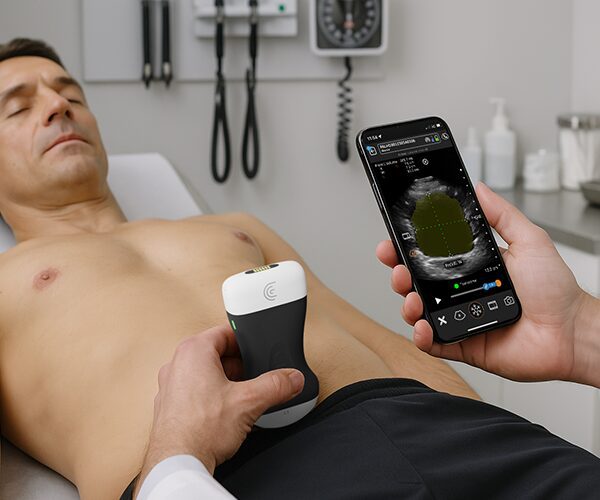
Once you've selected the preset, apply gel to the patient's skin and begin to scan. Press the snowflake icon to freeze
the image and the camera icon to store an image. If you would like to do a measurement,
go to the tools menu, select the measurement tool that you'd like. In this case, I'm going to do a simple distance measurement and then store your image. Again,
Clarius intelligence tools are also available with membership and they can be accessed directly on the imaging screen,
in the modes menu,
and in the tools menu. To complete your exam, tap on the menu button where you can enter patient demographics,
indications, and view any measurements and images that you've taken during the exam. Press the menu button again
and go to support. Here you can access the user manual, cleaning instructions,
and as well do a cloud reync when app updates become available to you.
Clarius has hundreds of classroom videos available for you to view directly in the app and they can also be accessed in
this menu or from the imaging screen. So have fun and happy scanning.